|


If you've ever purchased a new hard drive, then you've probably needed a product
like Norton
Ghost. Norton
Ghost (and other competitive products) allow you
to copy entire hard drives, copy individual partitions, backup partitions/drives
(create image files) and more. I have previously reviewed Paragon
Hard Disk Manager 5.5, PowerQuest
Drive Image and PowerQuest
DriveCopy 4.0, so I was looking forward to see how Norton
Ghost 2003 (hereafter referred to as Ghost) stacked up.
Installation
The software was tested on a Windows NT Workstation workstation, a Windows
XP Professional laptop, a Windows 98 VMware virtual machine, and a Windows
2000 Professional workstation.
The
software
installed in about 2 minutes on each of the systems. The Windows NT Workstation
installation required a reboot, but that was because the version of the Microsoft
Windows Installer was not current enough. Once that was updated and the workstation
was rebooted, Ghost installed
without incident.
Testing

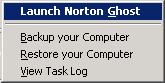 Once
the software is installed, a small icon is placed in the System Tray. When
you right-click on the icon, a small menu appears which allows you to choose
to launch the full program, or go to the Backup or Restore screens. At first
I couldn't understand why anyone would run Ghost more than a few times. Once
you've copied your hard drive (when upgrading), you'd be done with the software.
But then I realized that many people would be using this to do regular backups.
In that case, a quick click to get to the Backup screen would probably be very
useful. Once
the software is installed, a small icon is placed in the System Tray. When
you right-click on the icon, a small menu appears which allows you to choose
to launch the full program, or go to the Backup or Restore screens. At first
I couldn't understand why anyone would run Ghost more than a few times. Once
you've copied your hard drive (when upgrading), you'd be done with the software.
But then I realized that many people would be using this to do regular backups.
In that case, a quick click to get to the Backup screen would probably be very
useful.
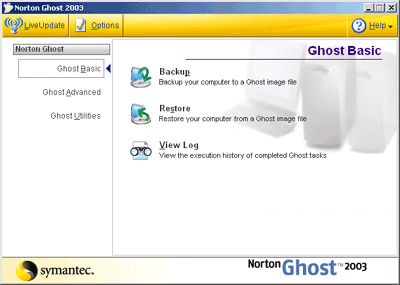
When Ghost is started, there are 3 main sections that you can view. The Ghost
Basic screen lets you choose to Backup or Restore your computer to/from a Ghost
image file. You can also view the log file. These 3 options are the same as
you would get when you right-click on the System Tray icon.
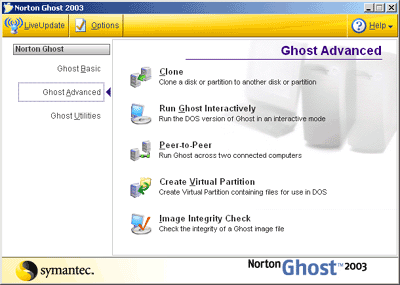
The Ghost Advanced screen lets you do much more. Clone is what you would do
if you need to copy a disk. It allows you to copy a disk/partition to a different
disk/partition. Another nice tool is the Run Ghost Interactively option. This
reboots your computer in a form of DOS and lets you run it yourself. If you
are familiar with older versions of Ghost, then you may prefer to run Ghost this way.
The Ghost Utilities screen gives you a few more options. I found Norton Ghost
Explorer to be the most useful. It allows you to open up a Ghost image file
and extract files from the image.

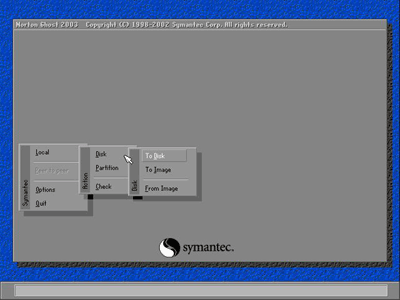
No matter what type of function you are using Ghost for (cloning, backup,
or restore), you will end up in the DOS version of the software.
Clone 4 GB partition to 20 GB drive
I installed Ghost on a Windows NT SP6a Workstation workstation to clone a
4 GB partition to a 20 GB disk. I did not want to only have a new 4 GB partition
on the 20
GB disk. I wanted the full 20 GB to be used (with 16 GB+ of free space). I
started Ghost, followed the wizard, and 15 minutes later I had my new drive.
As stated above, the only problems I had were a result of the operating system,
not Ghost. The reboot when Ghost was first installed as well as some problems
changing drive letters on the new drive were both a result of the Windows NT
SP6a Workstation. I did not have any of these problems with the other tests
performed.
Backup 10 GB partition, then restore to 40 GB drive
I installed Ghost on a Windows 2000 Professional SP3 workstation. Again, following
the wizard was straight-forward. Ghost also warned me about my USB keyboard
and mouse to make sure that I have set my BIOS so that it works in DOS. I have,
so the backup went smoothly. It took about 20 minutes to create an image file
from 7GB of data (on a 10 GB partition) and the image file was 3.6 GB (so they
data was compressed 50%). The software created an image file (GHO extension)
that was 2 GB and a spanning file (GHS extension) that was 1.6 GB.
I double-clicked on the GHO file and it opened in Ghost Explorer. I was able
to view the contents of the image file as if I were using Windows Explorer.
To restore, I right-clicked on the Ghost icon in the System Tray and followed
the wizard. I restored the image file to the new 40 GB drive, which took only
10 minutes. I rebooted the system, changed the
jumpers
on the hard drives (so that the new drive was the boot drive), and the system
booted to the ghosted drive just fine.
I did similar tests both Windows XP and Windows 98 with the same success.
I did not test the Peer-to-Peer feature (lets you create an image file and
save it on a networked workstation) and I did not back up an image to a CD-R/CD-RW
disc.
Purchase
You can purchase Norton
Ghost 2003 for $69.95 from Symantec.
Of course you can find it cheaper
at many online locations.
Conclusions
Norton
Ghost 2003 does its job well. It was extremely easy to use, and warned
me if there was anything that I needed to pay particular attention to. I thought
the speed of the software while cloning or creating an image was acceptable.
The installation was quick, and uninstalling the software seemed to remove
everything without leaving anything behind.
The software comes with a Getting Started Guide, as well as an excellent manual.
You don't usually get manuals these days, so it was nice to be able to sit back
and plan the use of the software.
Some may consider the fact that Norton
Ghost 2003 runs all of its cloning/imaging
functions in DOS is a drawback. I think this is a strength that ensures that
you have
not changed the contents of a disk while cloning/imaging is taking place. If
you need reliable disk imaging software, then Norton
Ghost 2003 is for you.
Return to FreeHelp Software
Reviews Home Page
Return to the FreeHelp Headquarters
Return to PCIN.net Home Page
|