|
Back in the days of DOS, you used to be able to press the Print Screen (also
called PrintScr or PrtScr or PrintScreen) key and what was on the screen would
print directly to your printer. These days, pressing that button will just
copy the current screen to the clipboard. You then need to open up an application
and paste the image into a document so that you can edit or print the screenshot.
If you've ever tried to do this you know it is not very convenient and usually
the files
created are unnecessarily large. This has created a demand for screen capture
utilities.
SnagIt by TechSmith
Corporation is probably the most well-know screen capture utility. It
lets you capture images of windows, toolbars, web pages, text, and
video and has many features. I recently obtained a copy of SnagIt
7 to review.
Testing
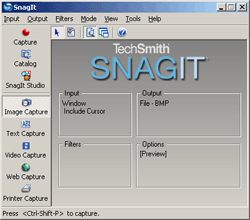
SnagIt 7 has three viewing
modes, each with their own advantages. The default is the Normal view (the
first image). This is a newer way to use the program.
The left side of the screen has three tabs that let you capture, edit, and
organize your screenshots. Each tab gives you quick access to the most commonly
used features of the program. You
have full control over all of the program options. The Classic view (the second
image) is the same view that has existed for the last
several
versions
of SnagIt.
If
you
are upgrading
from an older version of SnagIt and
want it to still look the same, you would choose this view. The Compact view
(the third image) is a much smaller window
and provides several icons to commonly used features.
There is also a handy toolbar available in all the Microsoft Office applications
as well as Internet Explorer. This toolbar is even smaller than the Compact
view and provides the basic features of the programs with just a mouse click

The program is very easy to use. In whichever view you are in, you just choose
what type of screenshot you want (screen, window, active window, region,
fixed region, object, or menu) and any options you want (scrolling, shapes,
capture
format). Then you either press the Capture button or use the predefined shortcut
key CTRL + SHIFT + P (this can be changed if needed). You will then
be able to capture a screenshot of your choice. Below are three different screenshots
obtained in three different ways:
 |
This screenshot of the Google News home page was taken by choosing to
capture a Window, and allowing it to auto scroll Window. If you are promoting
or analyzing a web site, this is an easy way to see the entire page at
once. Normally, this particular web page would be several printed pages
or require you to scroll many times down the page.
The image was resized
using the SnagIt Editor. |
 |
This screenshot of my system tray was taken by choosing to capture a
region. With that option chosen, I "drew" a triangle
around the region that I wanted to capture. This capture method gives you
absolute control over what is captures |
 |
This screenshot of a toolbar in Adobe Photoshop Elements 1.0 was taken
by choosing to capture an object. With this option, you can capture toolbars,
menus, toolbar buttons, scrollbars, etc. The toolbar was actually quite
a bit longer than this, but I used the SnagIt Editor to crop the toolbar. |
As I mentioned above, SnagIt
7 also comes with a simple, yet effective, editor.
When an image is captured, you can resize the image, save it in all the standard
image formats, as well as mark up the image to make things stand out. You can
add arrows, text, and "paint" on the image just like you could in any other
image editor. When the images are saved, the modifications to the images are
now permanently part of the image. SnagIt
7 also comes with a program called
SnagIt Studio. This lets you do even more with the images and save multiple
images in a project file. Any
modifications done here can be undone later.
SnagIt 7 also provides
you with a Catalog Browser (view and organize all of your image, text and video
files), lets you create a web page from image files,
and sets up a SnagIt Printer that lets you "print" from any program
to an image file. This may be useful in a situation where you are filling
in a form using software like Adobe Reader. These can't be saved unless you
own the whole Adobe Acrobat program. Using the SnagIt printer, you can print
the
form
to
an image file and save
it for
future reference.
Conclusions
If you've ever found yourself trying to explain to someone
how to do something on a computer, then you should have a
copy of SnagIt
7. It can be used for sending screenshots
to
friends
or to companies
for support. It will help you if you need to prepare lessons
or other material based on a specific piece of software.
SnagIt 7 contains
an incredible number of features. Even if you don't have a
need for taking screenshots, the ability to
catalog your images is very useful. Also, the ability to print
from any program to an image file gives you added flexibility.
There surely is something in the program for everyone.
SnagIt 7 can be
purchased through the TechSmith
Corporation site for $39.95.
Return to FreeHelp Software
Reviews Home Page
Return to the FreeHelp
Headquarters
Return to PCIN.net Home Page
|