|

by Moon Software
I have 9 web sites that I administer. I have 2 different networks at work
I login to. I have purchased from numerous online stores. I have a lot of passwords
I have to remember! I was doing just fine until I registered my 9th domain,
and I found that I couldn't remember any of the new passwords. I guess I just
couldn't squeeze anymore in. I've had numerous people complain to me about
having too many passwords to remember, so I figured this would be a good time
to find some software to review for PCIN.net
A search of Google brought up many choices, but most of them did not seem
to do what I wanted, or they did too much. I was looking for software to store
passwords, and that is about it. One piece of software that did seem to meet
my needs was Password Agent by Moon Software. I requested a copy and I've been
using
it ever since.
Installation and Program Versions
 Download
and installing Password Agent was as easy as it could be. There was no registration
required on the Moon Software web site in order to download
the software. The install file itself is only 1.27 MB, so on virtually any
speed Internet connection, it will download quickly. Running the install file
presented me with a few simple options. I clicked Next all the way through
(didn't customize any settings) and Password Agent Lite started to run. Download
and installing Password Agent was as easy as it could be. There was no registration
required on the Moon Software web site in order to download
the software. The install file itself is only 1.27 MB, so on virtually any
speed Internet connection, it will download quickly. Running the install file
presented me with a few simple options. I clicked Next all the way through
(didn't customize any settings) and Password Agent Lite started to run.
The software by default is run as the Lite version. This is the free version
that will allow you to store up to 25 passwords. Once you want to add the 26th
password, you will need to upgrade to the Unlimited version. One of the many
things that I was very impressed with was that other than the limit on the
number of passwords, the software is exactly the same. I don't like
it when the "lite" versions of software have limited features. It
makes it very hard to determine if you really need the "full" versions.
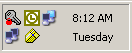 When the software is running, there is a small icon in the system tray that
looks like a key. If the password file is unlocked, you will just see a key.
If the password file is locked (there is a setting in the program that lets
you specify how long before the file locks itself), then there will be a little
red lock beside the key (it just looks like a red dot). When the software is running, there is a small icon in the system tray that
looks like a key. If the password file is unlocked, you will just see a key.
If the password file is locked (there is a setting in the program that lets
you specify how long before the file locks itself), then there will be a little
red lock beside the key (it just looks like a red dot).
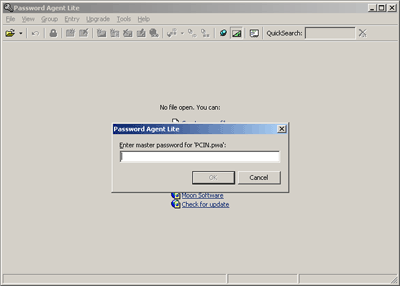
The first time you run the program (or anytime that you want to create a new
password file), you need to give it a name (you need to save the file somewhere)
and you need to give it a master password. This has to be something that you
will remember, as without it, you will not be able to get into the file to
see any of the other passwords. You can enter an optional
hint if you wish.
Testing
 The
software is very easy to use. The interface is similar to Windows Explorer.
On the left hand side of the Window is a list of folders. These are optional
and help you organize your passwords by categories. On the right-hand side
is a list of entries that are in that folder. If you are on the Root folder
(as soon in the image on the right), then you will see all of your entries. The
software is very easy to use. The interface is similar to Windows Explorer.
On the left hand side of the Window is a list of folders. These are optional
and help you organize your passwords by categories. On the right-hand side
is a list of entries that are in that folder. If you are on the Root folder
(as soon in the image on the right), then you will see all of your entries.
 There
are two types of entries; Account and Note. An Account entry consists of a
title, user ID, password, note, and a link. The only thing
that is required
is a unique title. When you are view the entries in the main program window,
by default, you do not see "sensitive" information. The data shows
up as a single number sign (#). To quickly see the user ID and password, you
can press the CTRL+H hotkey. There
are two types of entries; Account and Note. An Account entry consists of a
title, user ID, password, note, and a link. The only thing
that is required
is a unique title. When you are view the entries in the main program window,
by default, you do not see "sensitive" information. The data shows
up as a single number sign (#). To quickly see the user ID and password, you
can press the CTRL+H hotkey.
A Note entry eliminates the user ID and password. I found that I only made
1 note entry. The rest were all accounts.
Back on the main screen, the bottom-right corner shows you how many groups
or folders you have (in the Window on the right, there are 11 groups). It also
shows you how many entries your viewing and the number of entries there are
in total. In this case, there are 42 entries, and since I am viewing the Root
folder, I am seeing 42/42 entries. If I were to view a group that had 6 entries
in it, the number would show 6/42.
The columns that show in the main window are clickable and will resort by
the column that you have clicked on. I found this very useful. I used the CTRL+H
hotkey to show all of the information, and then sorted by the Password column.
This allowed me to see that I had several entries with the same password. I
should probably change some of them!.
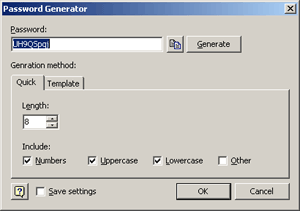 If
you do decide that you need to make a new password, there is a Password Generator
built-in to the software. You can specify how long the password should be,
what it should include (numbers, UPPERCASE LETTERS, lowercase letters, and
symbols), and an optional expiry date. You can also specify how many of each
type to include and in what positions. A very hard to remember (and crack!)
password
can be
generated,
but since it is all locked under a master password that you remember, it won't
matter. If
you do decide that you need to make a new password, there is a Password Generator
built-in to the software. You can specify how long the password should be,
what it should include (numbers, UPPERCASE LETTERS, lowercase letters, and
symbols), and an optional expiry date. You can also specify how many of each
type to include and in what positions. A very hard to remember (and crack!)
password
can be
generated,
but since it is all locked under a master password that you remember, it won't
matter.
There are other hotkeys in the software that let you copy user IDs and passwords
when the entry is highlighted. You can also open the saved link of an entry.
These two hotkeys combined help when entering information on a web page (first
open the link, then copy the user ID/password).
The Password Agent data files is quite small and is portable.
My data file with 42 entries was only 7kb. It could be easily saved to removable
media or emailed. I had the full version at
home which allowed me to create the 42
entries. I then brought my password file to work where I had the Lite version
installed. I could see all 42 entries and read them all, I just couldn't add
another entire (because I was over 25).
Usually these sorts of utilities don't come with much in the way of help,
but Password Agent is different. There is a 42-page user manual in PDF format
that you can print. There is also a
very
nice Help
file
that
is
accessible
from
almost
any
screen
that
you bring up by click the ? bubble. When I first wanted to learn about the
Password Generator, the help file answered all of my questions.
Finally, just as a side note, I just wanted to confirm that the password data
file was not just a plain text file. It would kind of defeat the purpose of
the software if someone could open up the file in Notepad and read everything.
I tried just that, and saw absolutely nothing that made any sense. The Moon
Software website states that the software uses "strong U.S. government approved
AES/Rijndael
encryption (256-bit key)".
Conclusions
As I mentioned in the beginning, I set out to find software that would store
my passwords. I wanted something simple, but powerful. I found that in Password
Agent. It is easy to use and can be as simple as a place to record passwords.
But it can also be a powerful tool to help you manage, change, and generate
strong passwords. The added features of being able to open links and fill in
basic authentication forms is great. And the portability of the data files
makes it easy to use anywhere. I wouldn't hesitate to recommend this product
to anyone.
Password Agent is free if you have 25 or fewer entries
stored. If you find that you need to store more than that, then you can
purchase the Unlimited version for $19.95 directly from Moon Software.
|