|
If you have an email account, then you get SPAM, Unsolicited Commercial Email,
Junk Email, or whatever else you want to call it. If you have a web site of
your own, then the amount of junk email you get is probably even higher. The
increase of junk email has brought a number of products to the marketplace
that claim to reduce or all together eliminate your junk email. I first heard
about iHateSpam from an MCSE consultant that Chris and I have worked with.
He recommended a server version of the product. When we looked into the product
and saw that they had a desktop version, we had to try it.
iHateSpam is by Sunbelt Software. They have 2 different server versions along
with a version for Microsoft Outlook and a different version for Microsoft
Outlook Express. During the trial, I used the Outlook Edition with Microsoft
Outlook 2000. Chris also tried the Outlook Express Edition with Microsoft Outlook
Express 6.0 and had similar results.
Installation
The software installs easily. Download the installer and run it.
Outlook (or Outlook Express) needs to be closed when you install the product
and after
installation, my Windows 2000 system required a reboot. When you start Outlook,
there is a slight delay as the iHateSpam add-in is loaded. The first thing
you are faced with is the Getting Started with iHateSpam window that
appears. It is a wizard that walks you through some of the most critical
options.
You are able to specify who your "friends" are (email addresses for
people you know and want to always accept mail from), how hard you want iHateSpam
to try to stop
spam
(I use the Most Spam setting), and whether you want to block emails
with international/foreign characters. You also need to specify a Quarantine:
Junk folder. This is where all junk email gets sent.
Outlook still looks the same, with the addition of a new toolbar. Like
any other toolbar, it can be removed, but you will find
it very useful as you use the software. More about the toolbar later on.

How Does It Work?
Once iHateSpam is installed, incoming email is analyzed against
iHateSpam's spam indicators to determine if a message is spam.
Suspicious emails are then placed in a special "quarantine" folder
in
the user's email system (in the Outlook Express version, they are placed
in the deleted emails folder).
In the Outlook version, iHateSpam uses its spam engine to determine if a
message is spam or not. In the Outlook Express version, which is more
basic in its spam detection and features, the program imports rules into
the Outlook Express Message Rules system.
Testing
The first thing I noticed was that only the messages in my Inbox were
being scanned by iHateSpam. I have several rules to move messages from certain
accounts
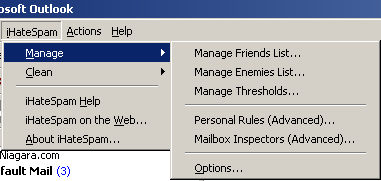
to different folders. This requires a new Mailbox Inspector. A Mailbox Inspector
is setup on a folder that you would like iHateSpam to check when new mail arrives.
You can modify your Mailbox Inspectors at any time from the iHateSpam -> Manage
menu.
I let the software run for 11 days with the basic settings (using the Average
threshold). Outlook continued to function as normal, and as junk email came
in, about 75%
of it
would be
classified as such, and be moved to the Quarantine: Junk folder. The toolbar
has a button called Is Spam! and I used this button when a message was
highlighted and I wanted it classified as spam. The message would then be moved
to the Quarantine: Junk folder. At the end of the 11 day test, there were 7974
messages in the Quarantine:
Junk folder.
I then started tweaking the settings. I changed the threshold level to catch Most
Spam. I also added some Personal Rules. I receive lots of junk email to
my PCImprovements.com accounts. Some of them are addresses that absolutely
don't
exist. I set up Personal Rules to automatically mark those messages as junk
email. After making these changes, I let the software run, and 90-95% of the
junk email was being caught. And the best part is that there were very few
good messages being caught. Out of about 4500 messages that were classified
as spam, I only saw 12 that were not spam. And after the messages were checked
automatically, there
were
only 17 that I needed to classify as spam myself. Ultimately, I found that
iHateSpam caught 96% of my junk email, and 99.7% of those messages classified
as spam were actually spam. Those are excellent numbers!
The software has all sorts of settings that can be set to meet your level
of comfort. You can go into the iHateSpam menu and choose Manage - Options. You
can change the threshold level. You can enable learning. You can modify your
character set settings.

One final note... during the 2 1/2 months that I have been running the software,
there have been 29168 email messages classified as spam.
Conclusions
I was very impressed by iHateSpam Outlook Edition. As I mentioned in the beginning,
it was recommended to me, and I would be happy to recommend it to others. Because
of the various web sites I have, I get an inordinate amount of junk mail. If
the software was able to help me by accurately classifying thousands of emails
as junk, it will certainly help an individual home user.
iHateSpam can be purchased directly
from Sunbelt Software for $19.95. You
may also be able to find it online elsewhere for slightly
less.
Return to FreeHelp Software
Reviews Home Page
Return to the FreeHelp Headquarters
Return to PCIN.net Home Page
|