|


One of the essential tools that every computer user must have
is a file compression utility. These tools let you uncompress
or compress files as needed. Most people associate ZIP files with
file compression, as this is the most common type. There are dozens
more though. Some operating systems have support built-in, but
this is usually very basic, and so the need arises for a third-party
utility that will handle file compression/decompression (or archive
files). This is where CuteZIP
comes in.
CuteZIP
is a product by GlobalSCAPE
(the makers of CuteFTP).
It handles ZIP files, as well as many others. It has full support
for ZIP, CAB, GZIP, TAR, PAK and PK3 files and decompression support
for ACE, ARJ, and RAR files. It has all of the standard features
that you would expect:
- Multiple levels of compression
- Self-extracting files
- Encryption
- Windows shell integration
- Disk spanning
This is how it works... when you download a file from your favourite
download site, the file is often in a ZIP file. If you have CuteZIP
installed, you would see an icon for the file similar to this:

You have 2 choices: double-click on the icon to open the file
in the CuteZIP
program, or right-click on it to use some of the integrated features.
I prefer to right-click on the file. When you do so, you will
see a menu similar to this:
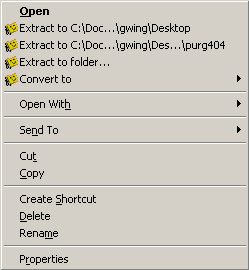
I had saved this file to my desktop, and so was given the option
to extract the contents of the file to my desktop, to a folder
on my desktop with the same name as the ZIP file, or I could specify
the name of a folder to extract to. There is also an option to
convert the file to a different file format. I usually use the
middle option and extract the file to a folder with the same name
as the original ZIP file. Once that is complete, the files are
available to use as needed.
As I stated previously, CuteZIP
also has an option to open up the ZIP file in the CuteZIP
program. When I double-clicked on the purge404.zip file, the CuteZIP
interface appeared as follows:
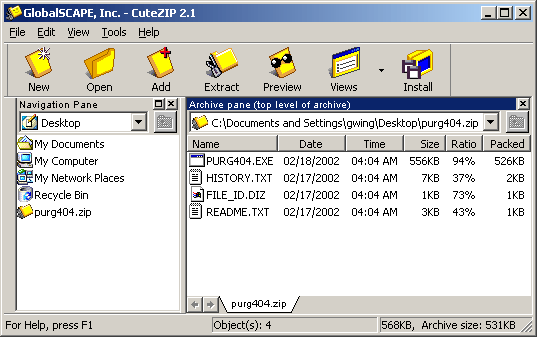
There are more options available from this screen, then from
the right-click menu:
- Add files to the archive
- View details of the files that are in the archive
- Install the archived program. In my example above, I extracted
the files to a folder. I would then need to run the setup program
in the folder to install the program that I had downloaded.
This works well, but in essence I end up with 2 copies of the
files on my computer (one in the zip file, another in the folder).
This is a waste of space. The Install option here lets you run
the setup program from within the ZIP file without making a
permanent copy of the install files.
Just as there are menus and options for decompressing and archive
file, there are similar options for compressing files. You can
right-click on files or folders and choose to create an archive
file. As with decompressing an archive, right-clicking gives you
very basic options. If you would like to add a password, change
the compression level, etc. then you would want to open the CuteZIP
interface and create the archive file there.
Conclusions
My first impression of the program was that it did not have as
many features as my current ZIP program, but the more I used it,
I found that CuteZip could do things that the other program could
not. One thing that CuteZIP
really has going for it is support for RAR files. This file compression
type can compress files better than ZIP, and so as files get larger,
you may be faced with more RAR files. Since CuteZIP
has support for this built-in, you won't need to purchase another
program.
Overall, CuteZIP
is worth the $19.95 cost (it is currently only $9.95 when you
purchase it with CuteFTP). It should meet the needs of any standard
user. Even if you have an archiving utility, it would still be
worth a look. You may find (as I did), that your existing utility
doesn't do everything you thought it could.
Return to FreeHelp Software
Reviews Home Page
Return to the FreeHelp Headquarters
Return to PCIN.net Home Page
|