|


I've always been one who thought that a keyboard was a keyboard.
As long as it has 26 letters, 10 numbers, and some other useful
symbols, then it is fine with me. But recently I acquired a Microsoft
Office Keyboard to review and I certainly don't think that anymore!
Installation
Installation is just a matter of plugging the keyboard into an
available USB port on your computer. I didn't have an available
port, so I used the PS/2 adapter that came with the package and
plugged it in a standard PS/2 port on my computer and it worked
just fine. I went to the Microsoft site and downloaded the most
recent version of the IntelliType software and it installed without
any issues. The keyboard witll work without the software, and
all of the defaults of the keyboard will work as well. You need
the software only if you want to reprogram any of the buttons.
Testing
The Microsoft Office Keyboard has all of the standard keys that
you would expect, and also 54 programmable keys. These keys are
also very quiet. In order to make room for some of these new keys,
they have changed a few locations of keys, which takes some getting
used to. Instead of having 2 rows of buttons above the arrow keys,
there are 5 buttons, with the DELETE key being the size of 2 buttons.
I've been used to the normal location of these buttons, and so
for a couple of weeks I kept pressing the wrong button.
The Hot Keys at the top of the keyboard are nice to start frequently
used programs. Mose people will find the defaults for these keys
useful, but you can also program them to start any program you
wish. You can also disable the key if you have no need for it.
Very few people use the Function keys (F1, F2... F12) on the
keyboards, and Microsoft has turned them into more useful keys.
Instead of using F5 to refresh a web page, you can use it as the
File - Open command. Instead of using F12 for nothing, you can
use it to Print. I tried to get used to this, but I just couldn't.
I am so used to keyboard shortcuts (ALT-F4 to Close, F5 to Refresh,
F1 for Help, etc.) that I ended up turning the F Lock on and using
the keys as standard function keys. I think that most advanced
users would end up doing this as well. One thing that I didn't
like about using the F Lock key was that when the computer is
rebooted, the F Lock key would turn off by default. There didn't
appear to have any way to tell it to stay on all the time.
UPDATE
I received the following from a visitor to the web site:
I noticed your article @ http://www.pcin.net/help/hardware/msok.php
regarding the F Lock Key. I found a site that has 2 reg files on
it that
remaps the F button so you can permenantly disable
the F Lock Key located @ http://mvps.org/jtsang/flock.html
It basically
flips the mapping around in W2K and WXP so that by default it acts
as if the F Key has been pressed when u logon
to Windows..
Very useful cos myself I hate not using the old way of doing
things.. I press F5 a lot.. and I use a IRC Script that has F
keys shortcuts so it makes it a pain in the butt ..
Hope this
information helps..
Cheers.. goofydave
Thanks goofydave! In deed it does help!
The Single Touch Pad on the left has a Back and Forward button,
a scroll wheel, a set of Cut, Copy and Paste buttons, and an Application
Switch which acts as if you had pressed ALT + TAB to switch between
programs. The scroll wheel scrolls much faster than my mouse,
and so I loved using it to get through large documents. The Application
Switch also was very handy. As with the function keys above, I
couldn't get used to using the Cut, Copy, Paste, Back, and Forward
buttons as I am used to using the other keyboard shortcuts for
them.
Images
 |
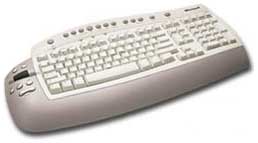
- The entire keyboard is very large.
- It is about 21" at its widest and is 10" deep
- The cable is 6' long
|
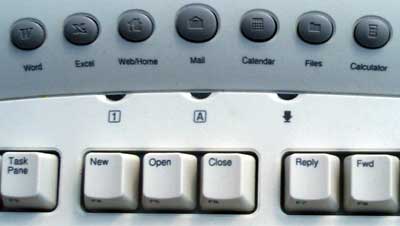 |
- The round grey buttons on the top are the Hot Keys.
The default program is listed below them, but they can
be programmed for anything you want
- The regular keys are some of the function keys. You
can see that F4 becomes a New button, F5 becomes an Open
button, and F6 becomes a Close button
- The 3 semi circles between these rows of buttons are
the NUM, CAPS, and SCROLL lock lights
|
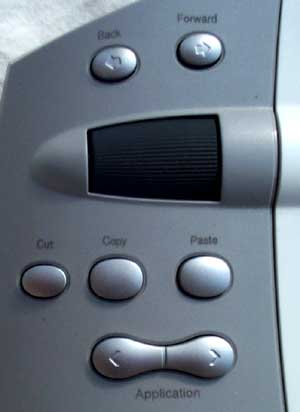 |
- This is the Single Touch Pad
- The top two buttons are for moving Back and Forward
within your browser
- The large back area is a scroll wheel like what you
would have on your mouse. It moves much faster and smoother
though
- The other three buttons are the Cut, Copy, and Paste
buttons
- Lastly is the Application Switch that lets you rotate
through open programs
|
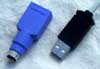 |
- The keyboard can plug into an available USB port or
into the standard keyboard PS/2 port via the adapter
|
 |
- The Key Settings tab of the IntelliType Pro software
lets you change the action that is taken when you press
some of the buttons.
- With almost any button you can choose from a list of
preset commands, start a program, web page or file, or
disable the key
|
Purchase You can learn more about the Microsoft Office Keyboard at http://microsoft.com/hardware/keyboard/ok_info.asp
The suggested retail price is $44.95 US. You should be able to
find this for about
$40 US or $60 CDN.
Conclusions
As I mentioned in the introduction, I used to think that a keyboard
was a keyboard. After you use the Microsoft Office Keyboard, you
certainly won't think that anymore. Even though I turned off some
of the special features, there were still plenty of features that
were very useful. An advanced user will enjoy using the keyboard,
while a beginner will love learning to use a computer with this
keyboard. They will get used to the new features as if that is
the way keyboards are supposed to be. The bottom line is that
for about 2x the price of a basic keyboard, you will find this
to be a keyboard that will more than double your effienciency
and enjoyment.
Return to PCIN Hardware Reviews
Return to PCIN Home Page
|